Buy a GLM API Key
GLM is the flagship model series from Z.ai, a leading AI lab. Its models GLM-5.1 / GLM-5-Turbo are strong at reasoning and code generation. This guide walks you from zero to a working API Key in about 5 minutes.
Step 1: Create a Z.ai Account
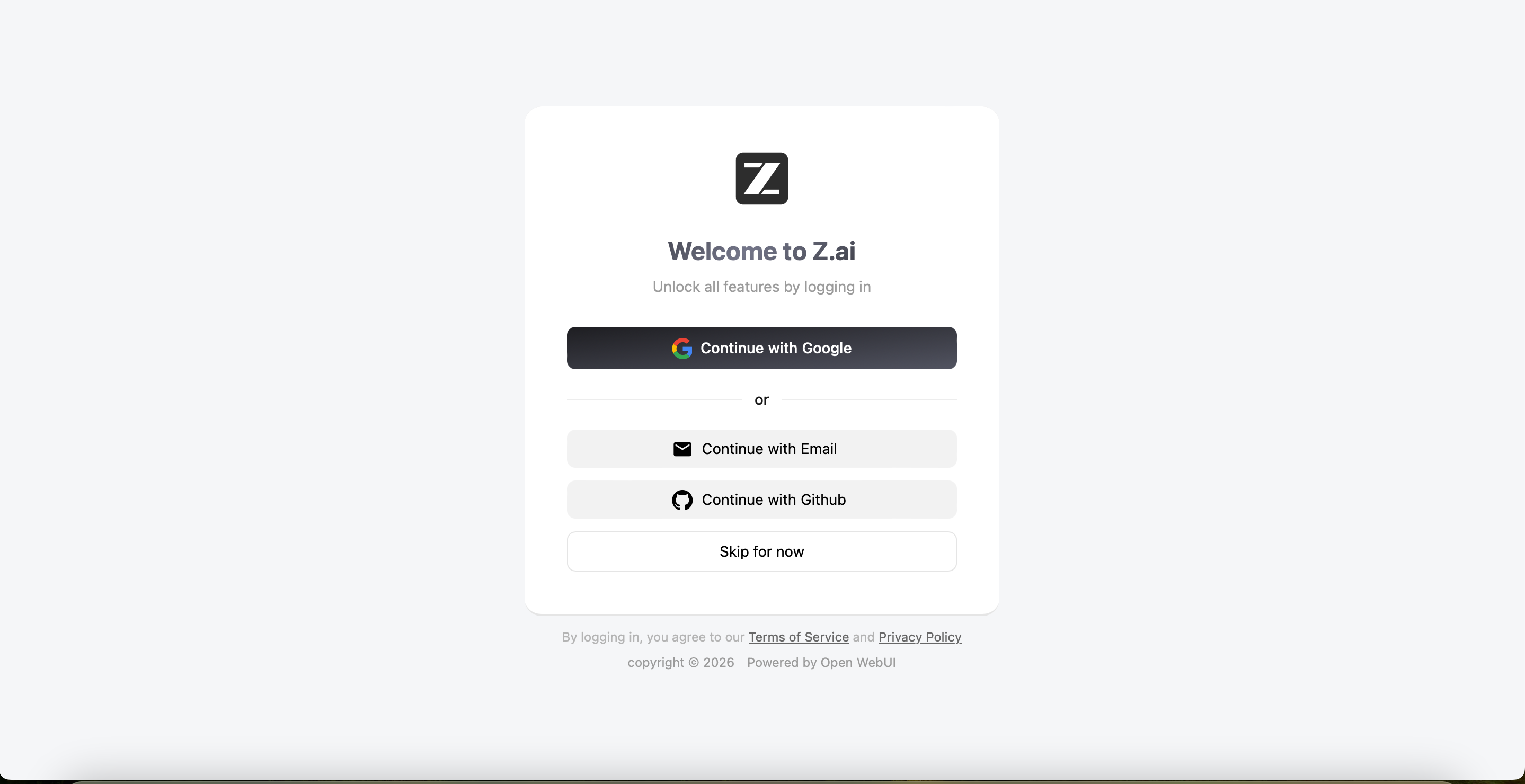
- Go to the international platform: https://z.ai/manage-apikey/apikey-list
- Click Continue with Google, Continue with Email, or Continue with GitHub
- Follow the prompts to complete registration and sign in
Step 2: Add a Payment Method and Top Up
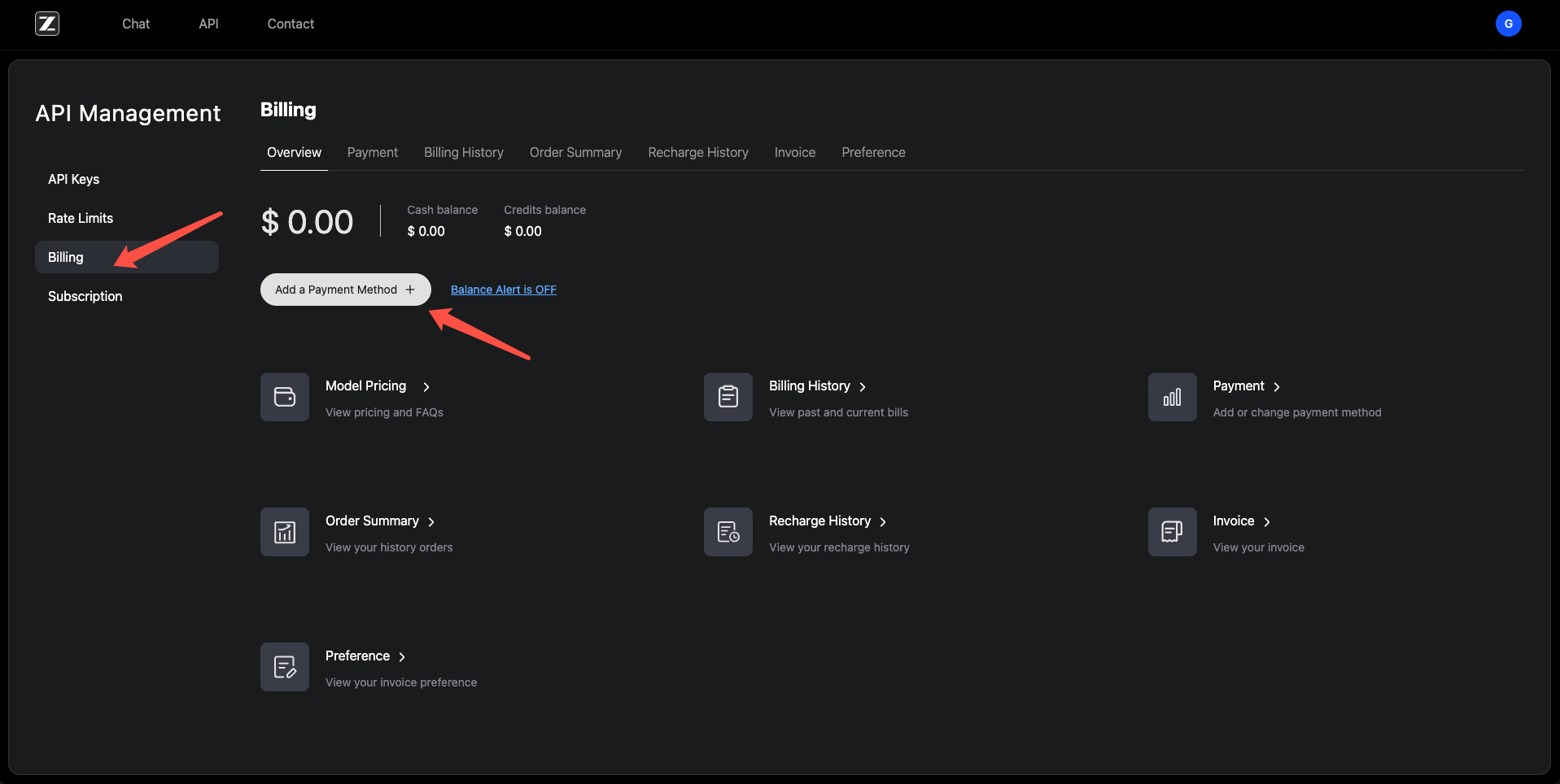
- In the left sidebar, click Billing
- Click Add a Payment Method
- Enter your card details and complete the payment setup
- Credits activate instantly after payment
⚠️ Balance is non-refundable — only load what you plan to use.
Step 3: Create an API Key
- In the left sidebar, click API Keys
- Click Create a new API key in the bottom right
- Give it a recognizable name (e.g.
openclacky-mac) - Find the newly created key in the list and click the copy icon
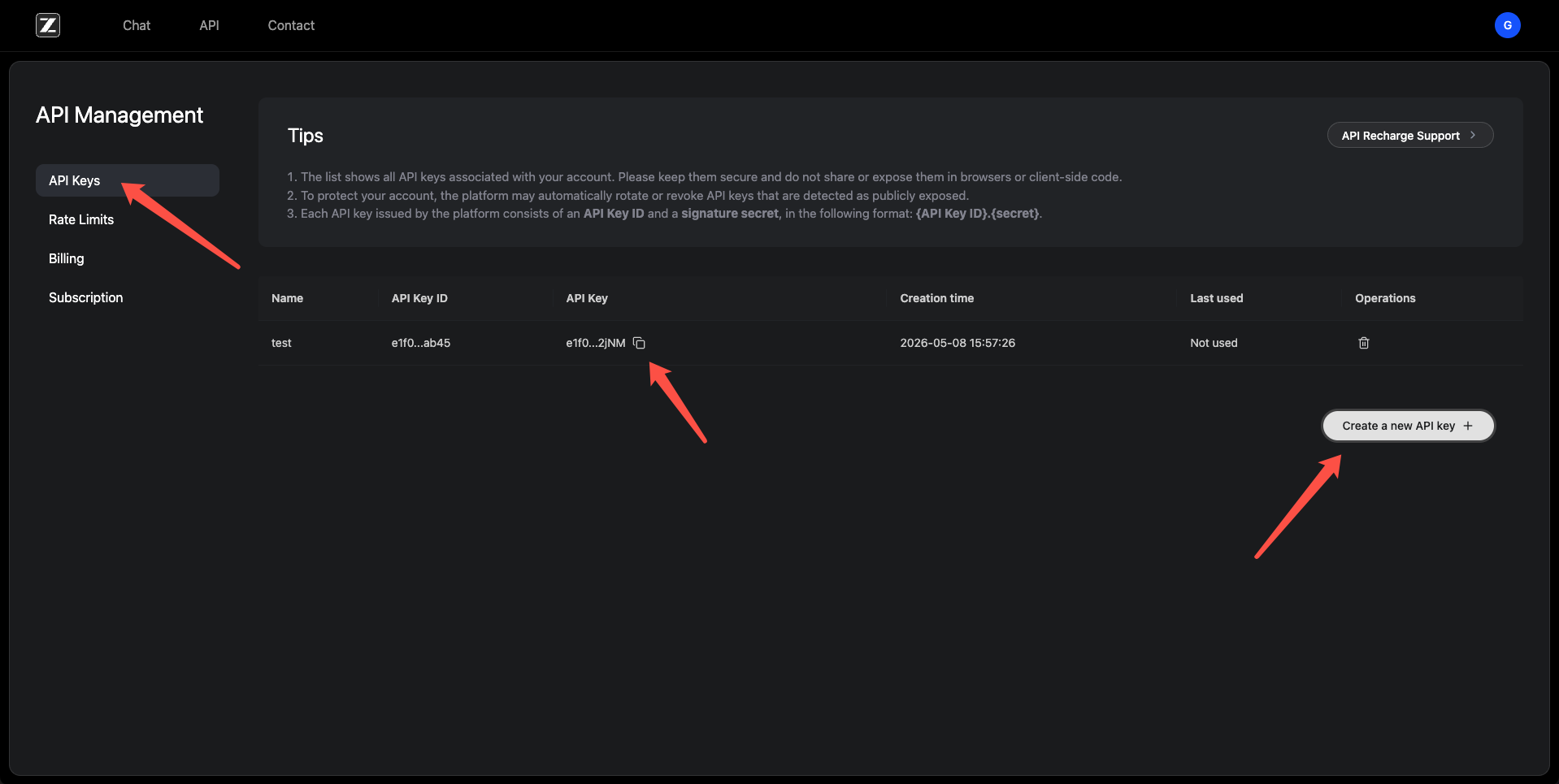
⚠️ The full Key is not displayed in plain text. Click the copy icon to copy it, then paste it somewhere safe immediately.
Step 4: Configure in OpenClacky
Open the Connect AI Model page in OpenClacky and follow these steps:
- Provider dropdown → select GLM (Z.ai / Zhipu)
- Model dropdown → pick a model
- Base URL → open the dropdown and select International · Pay-as-you-go
- API Key — paste the Key from Step 3, click Test & Continue
A green success message means you're all set.
⚠️ If you purchased a GLM Coding Plan, the endpoint is different — select Coding Plan from the Base URL dropdown.
FAQ
Q1: What's the difference between the models?
glm-5.1: Latest flagship, stronger reasoning, best for complex tasksglm-5-turbo: Optimized for coding tools like OpenClacky, better at tool-calling but weaker thanglm-5.1glm-5v-turbo: Native multimodal model, supports image input
Q2: My Key keeps throwing errors — what should I check?
Check that your account has sufficient balance, the API Key hasn't expired, and the Key was fully copied. If you're using a Coding Plan key, make sure to select the Coding Plan endpoint in the Base URL dropdown.
Q3: I forgot to save my API Key!
Go back to the API Keys page and copy it again from the list.
Q4: How do I track spending?
Go to Billing → Billing History to view daily usage and charges per Key.